
Hard Drive Firmware Recovery
Specialist firmware-level recovery for hard drives that are not detected, report the wrong capacity, or appear stuck — diagnosed carefully against mechanical and media faults first.
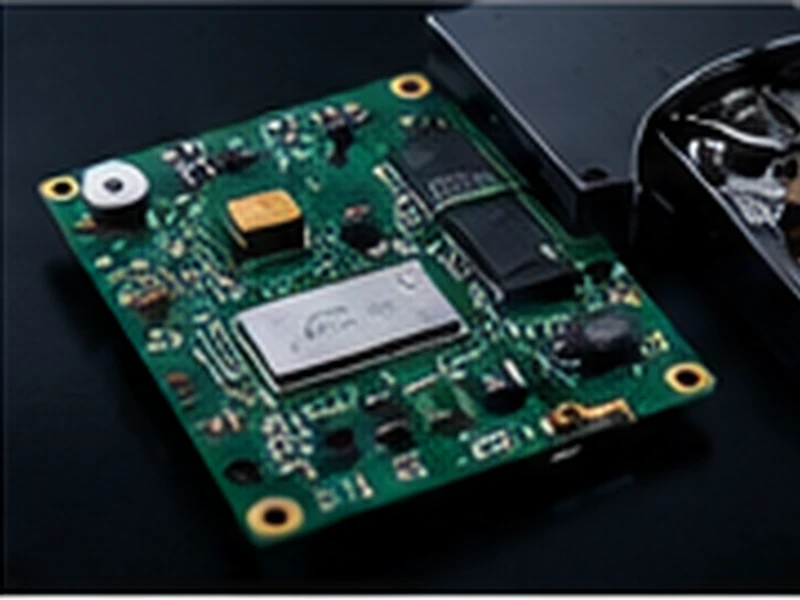
Firmware corruption can make a mechanically healthy drive appear dead — not detected, reporting 0 or incorrect capacity, stuck in a busy state, or clicking during initialization. Firmware symptoms frequently overlap with mechanical and media-related problems, so correct diagnosis matters before any firmware-level work begins — firmware repair alone is not sufficient when heads or media are also failing.
Common Causes of Failure
Service Area / System Area Corruption
The hidden system area that stores a drive's firmware modules and translator data can become corrupted, affecting how the drive identifies and reads itself.
Translator-Related Faults
The translator that maps logical addresses to physical locations on the platters can become damaged, making the drive appear to have missing data even when the platters are intact.
Firmware Module Faults
Specific firmware modules can fail independently, producing symptoms particular to that drive family and vendor.
Busy / Stuck Initialization
A drive can become stuck reporting a busy state during startup due to firmware faults rather than a mechanical problem.
Overlap With Mechanical or Media Issues
Firmware symptoms — including clicking during initialization — can overlap with genuine mechanical or media damage, so proper diagnosis is essential before assuming a firmware-only cause.
What We Handle
- Drives not detected due to firmware corruption
- Drives reporting incorrect or 0 capacity
- Corrupted service area / system area faults
- Drives stuck initializing or in a busy state
- Firmware faults following a failed update
- Drives that identify with the wrong model or serial
- Cross-brand, family-specific firmware diagnostics
Common Signs & Failure Scenarios
Our Recovery Approach
-
1
Family-Specific Diagnostics
We identify the drive's vendor and firmware family, since firmware structure and known fault patterns vary significantly between them.
-
2
Overlap Assessment
We confirm whether the symptoms are firmware-only or also involve mechanical or media-level issues, since firmware work alone won't resolve a mechanical fault.
-
3
Firmware-Level Access
Specialist tools are used to access and work with the drive's firmware modules and system area — the specific procedures are proprietary to our lab and not published.
-
4
Data Extraction & Verification
Once the drive can be read reliably, data is imaged, extracted and verified before being returned on your destination media.
Important: What Not To Do
- Do not attempt firmware-level repair tools yourself; incorrect changes to the system area can make data permanently inaccessible.
- Do not assume a firmware fix alone will resolve a drive that is also clicking or making unusual noises — this needs a full mechanical assessment first.
- Do not repeatedly power-cycle a drive stuck in a busy or initializing state.
- Avoid running a firmware update on a drive already showing faults.
Devices & Configurations We Cover
Frequently Asked Questions
This is often a sign of firmware corruption rather than a mechanical fault — the service area or a specific firmware module can be damaged while the mechanical components remain healthy.
This is a common symptom of firmware or translator-level corruption, where the drive can no longer correctly report or access its own capacity information.
Not necessarily. Clicking can also indicate a mechanical fault, and firmware symptoms can overlap with mechanical or media problems — proper diagnosis determines whether firmware work alone is sufficient.
In many cases, yes, though the outcome depends on the specific vendor, drive family, and extent of the corruption.
We work across major hard drive brands and families, using diagnostics specific to each — firmware structure and known faults vary considerably between them.
Ready to Start Your Recovery Case?
Tell us what happened to your device and we'll advise on the right next step.
Submit a Case →